Tag: Tips

  • Disable Windows Hello for Smooth Autofill in Chrome

    Disable Windows Hello for Smooth Autofill in Chrome

    If you are a regular user of Chrome on Windows like me and have the auto-fill password manager enabled, you may be getting the Windows sign in prompt every time that you try to auto-fill any forms.

    Looks like it is the “Use Windows Hello” setting in the Google Password manager (accessed from Settings -> Autofill and passwords -> Google Password Manager) which was causing this. Turned it off and no more prompts. You would want to leave it on if you are sharing the Windows account with others of course.

    Thanks to this forum post.

  • Fixing newsletter readability on Inoreader

    Fixing newsletter readability on Inoreader

    I have been using Inoreader as my main feed reader for quite a while now after having tried feedly for a few years. I even upgraded to their Premium plan for the power user and additional newsletter limits.

    I subscribe to a few newsletters as it is easier to get all the content in one place. There had been one rendering issue that I had been facing with Matt Levine’s Money Stuff newsletter ever since the recent update to Inoreader where the last few characters in each line would get cut off in the pop up reader view, like so:

    I tried reaching out to support, but they were not able to do much. So, I did a bit of research and found that Inoreader has a custom CSS feature in its power user setting that some folks have used to personalise the interface. The newsletter contents were being rendered in an HTML table which I discovered by inspecting the source (hit F12 on the browser or go to the dev tools).

    I did a bit of experimentation in the custom CSS settings, and found that setting the table width to 85% fixed the issue:

    table {
      width: 85%;
    }

    I’m sure this is a very obscure issue which is for users like me who have subscribed to a particular newsletter in a feed reader, but documenting it in case others face something similar.

    You could of course just read the newsletter in your email inbox or through a service like NewsletterHunt, or just change the view to full article in Inoreader.

  • Dubai Diaries: The Dubai move and Golden Visa

    Dubai Diaries: The Dubai move and Golden Visa

    It’s been exactly 2 years since I joined my regional role in Boehringer Ingelheim in Dubai. I rarely blog about my personal life, but I thought now would be a good time to share some of the experiences around this move.

    The move to Dubai was in itself fairly straight forward as it was through an internal move. I started off with a regular employment based residence visa valid for 2 years. My family also relocated in the middle of last year, and their visas were completed through the office pretty quickly.

    Since my visa was due for renewal this year, I decided to opt for the UAE Golden Visa for salaried professionals which has a relatively easier qualification qualification criteria than the others:

    • Monthly gross salary of AED 30,000 or higher (that seems to be the current consensus, as I have also read of it being the basic salary without allowances in the past)
    • Bachelor’s degree or higher
      • Getting the equivalency certificate for this is typically the most time consuming process

    While my application was managed by my office in DIFC which definitely helped with the clarity around the process, I did find this recent Reddit post by the Amer Centre quite helpful and along with this article in Khaleej Times that explains the process and documentation requirements. I am sharing a simple guide to get the necessary documents ready based on my experience.

    Step by step guide

    The overall process took about 2 months for me, out of which the first 3 weeks went in getting the degree equivalency certificate, followed by 2 weeks for the degree physical attestation and about 2 weeks for the actual visa application, health checkup & Emirates ID issuance.

    You need digitized versions of the following key documents for the application (some like the equivalency certificate require additional documents for the verification) in addition to other documents from your employer:

    • Degree equivalency certificate
    • Bank statement showing the salary credit each month
    • Attested degree certificate (UAE Embassy in university country and MOFA in UAE)
    • NOC from company
    • Current passport and visa
    • Current passport sized photo (white background, no glasses – you can tell the photo studio for the Emirates ID or visa version)

    The equivalency certificate

    Getting the degree equivalency certificate is usually the bottleneck in this process, based on the experience of my colleagues and those who have shared their experience online.

    The process is as below with details on the Ministry site here (they also have a useful document checklist that you can refer to):

    Typically you would need your original degree certificate, the final transcript (official stamped marksheet for the entire duration of the course) and your passport copy. You need to choose one of the official partners (Dataflow or Quadrabay at the moment) for the verification and share these documents with them. It costs around AED 350 for this part of the process.

    The turnaround time is slated to be 30 days, but is completely dependent on the response time of the university. Here are a couple of tips to help speed up the process which worked for me:

    • Keep the details of your university alumni association and key academic departments handy.
    • Once the initial documents have been verified by the partner and sent to the university, if you do not get any update within a couple of weeks check in with the customer support for details regarding the communication with the university.
      • I managed to get the details of the email subject line and the department to which they had mailed this way.
    • Contact the alumni association or academic department with the details you got regarding the verification communication to nudge it along.

    Once the verification process is successfully completed, you will get the notification to complete the application on the Ministry site with the appropriate link. There is another payment involved, and the certificate is generated almost immediately. This completes the most time consuming part of the application.

    Degree attestation and next steps

    The next few steps are quite straight forward, and you could even get the degree attestation done while you are waiting for the verification to happen. You will of course need the physical degree certificate for this, and use an agency like VFS (they have an attestation helpline that you can mail here) to get this done in 2-3 weeks with doorstep pickup and drop-off.

    Once you have these documents you can go ahead with the actual visa application. A few additional tips:

    • In the bank statement (an online statement download should be fine), highlight the salary deposits and make sure that your name & account details are there on every page & highlight those as well.
    • If you are immediately transferring your salary to another account after the deposit, you may need to provide the statement from the other account as well.
    • The photo you submit will be used in the visa and Emirates ID, so you can ask the photo studio to take it accordingly.
    • You will probably be given a slot for the health checkup, but depending on your location you may be able to walk in for the checkup much earlier.
    • Ensure that you are setup on UAE pass so that the authentication on the partner sites is easier.
    • Setup your ICP app as well do that you can access the digital versions of your visa and updated Emirates ID. This uses UAE pass as well for login.
    • Depending on how you have applied, you may need to get the new Emirates ID re-issued.
    • You will need to transfer your dependents’ visas at some point in time as well.

    Hope this helped you, and wish you the best with your Golden Visa application! If this gets a good response, I’ll share some of my experiences and learnings around the Dubai relocation.

  • iOS to Android [P1]: Perks outside the walled garden

    I had never used Android as my exclusive daily driver, and my last proper Android phone usage on the Mi 4 was in parallel with my iPhone 5s around 6-7 years ago. A lot has changed in this time, and a lot has also remained the same especially when it comes to the customizations possible.

    Here’s a quick rundown of the key new features I’ve recently (re)discovered on this side of the fence.

    Ad blocking with Blokada

    Ad blocking apps are of course nothing new on the iOS side, but are largely limited to browsers & webviews at best. This is where Blokada for Android comes in. It sets up a local VPN on the device and does local DNS filtering a la Pi-hole to block ads across apps. There is going to be a slight performance & battery life penalty, but you get ad blocking on the go. You can sideload the full featured version, or just get the Slim version from the Play store. It’s also available for Android TV, in case you do not want to use Pi-hole.

    You can get similar functionality on the iPhone side of things, but need to use cloud services to get similar features which add on subscription costs & connection latency.

    SMS Organizer

    Custom launchers, dialers & SMS apps have been around from the very beginning on the Android side and have also been one of the biggest attractions of the platform. That said, the way we use SMS has changed a lot and it has become more of a platform to get transaction notifications, esp. for OTPs. This of course means that you have to be really careful in which custom apps you choose as a rogue app could easily siphon off your identity or bank balance.

    That said, the SMS Organizer app from Microsoft Garage is a really smart app that makes life much easier and feels like a breath of fresh air after having used the iPhone Messages app for the last several years.

    Transaction messages don’t just get a separate tab, but the notifications are also designed to highlight the key portion. Promotional & personal messages get their own tab as well. Then there’s the tab for reminders, finance & offers – each of which intelligently parse the messages and put the key information in a usable or actionable form. So, you can glance your bank, credit card, EPF, PPF & other such accounts including a transaction list (not completely accurate at times due to duplicate messages), get a reminder of your upcoming bills & travel plans and also surface the coupon codes that get sent in umpteen promo messages.

    Then there’s the simple but great QoL improvement due to the ability to mark all messages as read and delete old OTP messages after a certain period. It also backs up the messages to Google Drive in case you want to restore later.

    I’ve also been using the Microsoft Launcher which neatly integrates with Outlook and makes it easier to glance upcoming work meetings.

    Windows integration

    Yet another point around a Microsoft feature for Google’s OS. When I had switched to iPhones in 2014, it was from a Lumia 720 and Microsoft was still making Windows Phones at that time. Now, Microsoft seems to have embraced mobile devices & the cloud and their apps have features to further this vision. The Microsoft Phone Companion app on Windows makes it easy to connect to any Android phone, and in my case, the Samsung Galaxy S20FE has the required apps pre-installed.

    Microsoft’s Phone Companion app in action along with the Swiggy app running from the mobile on the laptop

    While it is not quite the kind of integration between macOS & iOS devices, there are many ways this is more fully featured as you can not just control basic settings like volume but also access your phone’s notifications, messages, photos & apps right from a Windows machine. This makes it quite easy to stay tuned to a single device, unless you are a Mac user, or are using a work laptop where this feature is restricted.

    Working on large screens

    This is a perk of Samsung devices with DeX support where you can connect to a larger screen like a monitor or TV (USB to HDMI dongle required) or to a PC (wirelessly or through a USB cable), and then get a desktop like experience.

    I got a USB-C to HDMI adapter which also has a USB A port & USB C pass through charging, which allows me to connect a key + mouse combo along with the monitor to access the DeX mode. This mainly comes in handy when you need a larger screen to edit audio/video/images taken on the phone, or just want a larger screen to view content.

    Also a quick mention of the split screen & hover apps feature on Samsung devices that has been supported since the earliest Galaxy Note devices, and has been available on iPads for a while but not on iPhones.

    Automation

    iOS devices have made great strides on this front with the Shortcuts app which started off as Workflow before being acquired by Apple. This largely pales when one compares to Android veterans like Tasker & Llama that have been around since the early days. Services like IFTTT & Zapier can also do more on Android than iOS. Then, there are the Shortcuts contemporaries like Google Assistant & Bixby routines which provide an easier interface.

    Most of my automations deal with silencing & unsilencing the phone based on different conditions like location & time of the day. This is where the iPhone’s hardware mute switch gets in the way as automations can’t alter its state.

  • Getting rid of ads with Pi-hole

    Getting rid of ads with Pi-hole

    I’ve been using Pi-hole running on a Raspberry Pi 3B+ for the past 2 1/2 years, and it has really spoilt me to the extent that I have forgotten what ads on web pages and mobile apps look like (the limited travel in the last couple of years has also helped). It’s pretty effective in getting rid of the pop-up mobile ads and the in page banner ads on all devices connected to the wifi.

    The setup process is quite simple if you have your own router or at least change the DNS server on the home router:

    • First off, get hold of a Raspberry Pi (even the model Zero is powerful enough for the Pi-hole), and the necessary peripherals like a case, SD card, charger & LAN cable. There are many readymade kits with the OS preinstalled sold online including Amazon, which saves a good deal of time.
    • Initial setup is easier with a monitor & keyboard + mouse attached to the Pi. Once this is done you can connect it to your router using a LAN cable and access it through a Telnet client/mobile app like Putty on any of your devices in the home network.
    • Next, you need to install Pi-hole on the Pi (you can do it during the setup itself), and configure the router to use the Pi as your DNS server. If you are stuck without admin access to your router, then you may need to configure each device to use the Pi separately.
    • You can also install mobile apps to manage the Raspberry & Pi-hole quite easily through your phone. There are multiple apps available for both Android & iOS.

    Once everything is setup, you should have an ad free experience on your devices (not all ads can be blocked of course). I’ve found about 10-15% of the queries on my home network getting blocked, and this includes devices like Android & iPhones, iPads, Android TV, Amazon Echo, Homepods & Windows laptops of course.

  • Design for Time Well Spent

    I’ve actually ended up doing quite a few on this list thanks to the limited storage and diminishing battery capacity on my iPhone 5s:

    9 MINDFULNESS TIPS

    How can we live more mindfully with technology today?

    On iPhone:

    1. Create a Tools-Only Home Screen
      Limit your home screen to the top 4-6 tools you use frequently to get things done. Move all other apps off the first page and into folders.
    2. Open Other Apps by Typing
      Typing filters out unconscious choices while keeping conscious ones. Open apps by typing their name.
    3. Keep Only Two Pages of Apps
      With six pages of apps, we find ourselves swiping back and forth through them mindlessly. Keep to two pages, the first with tools and the other with folders.
    4. Turn Off Notifications, Except from People
      Only get notifications when people want your attention, not businesses or machines.
    5. Keep the M&M’s, but Hide the Wrappers
      Colorful icons are designed to trigger us to use apps unconsciously. Put these on the second or third page inside folders, and open them by typing instead.
    6. Stop Leaky Interactions
      Set your Alarm or Camera without unlocking your phone so you get kicked out automaticaly afterwards. Swipe up on the lock screen to quickly access.
    7. Reduce Phantom Buzzes with Custom Vibrations
      Create your own unambiguous vibration pattern to distinguish between when people need you vs. a machine. (Go to Settings > Notifications > Messages > Sounds > Vibration > Create New)
    8. Buy a Travel Alarm Clock and Charge Outside the Bedroom
      Waking up to check our phone sets our day off to a bad start. Get a separate alarm clock and leave your phone outside to charge.
    9. Know your Bottomless Bowls and Slot Machines
      Know which apps are bottomless bowls (trapdoors) and slot machines (constant checking) for you. Move them off the first page of apps.

    Source: Design for Time Well Spent

  • Getting rid of those pesky MTNL Ads

    In the NDTV app on Android
    In the NDTV app on Android

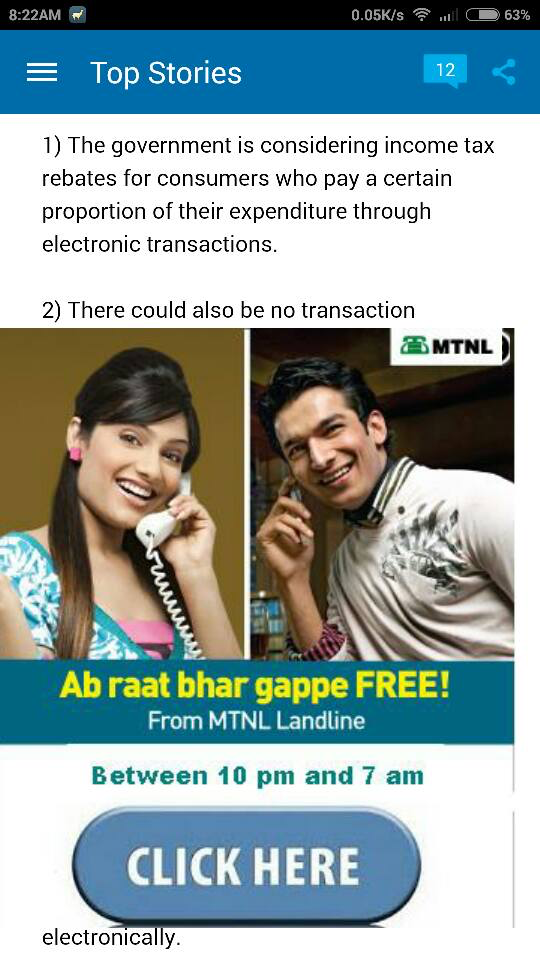
    That’s the article view that greeted me when I tried to read one of the news articles on the Android NDTV app. MTNL has been doing this for the last few weeks in Mumbai, and I’d noticed it earlier while browsing sites on my iPad, laptop and phones as well. I finally gave up and decided to block the IP serving these ads – 203.94.227.140 – at the router level itself so that I wouldn’t be bothered on any device.

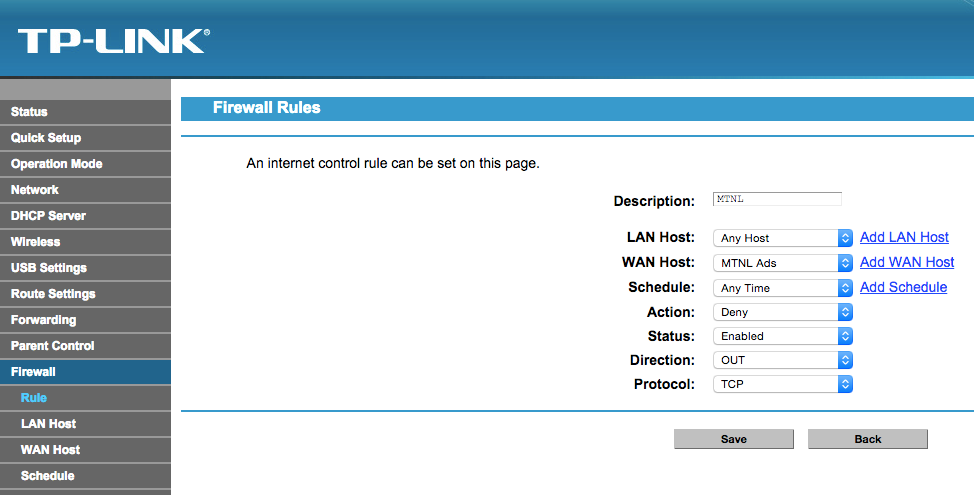
    In fact this doesn’t seem to be the first time MTNL has done this given Yogesh’s similar post from over a year ago which also contains instructions to block the ads in greater detail (maybe first time in Mumbai though). If you want detailed instructions, check out his post, and use the IP- 203.94.227.140, as his IP seems to be for MTNL Delhi. It is also possible that they start using other servers, so if you come across any MTNL ad, right click and check out the source server IP, and then add it to your router blocklist. In my case, I found the IP this way, and then enabled the firewall on my TP Link router and added a rule to block this IP (use add WAN host to add the IP).

    TP Link router firewall
    TP Link router firewall

    If you check out the user posts on the MTNL Mumbai facebook page, you’ll find similar complains from other customers as well. Airtel drew its share of flak sometime ago for similar behaviour, but the MTNL shenanigans have gone almost unnoticed with hardly any mainstream coverage.

    This is a very poor way to treat customers and it really gets in the way on mobile devices. Of course, this kind of injection only works on non secure sites only, so HTTPS sites like Google, facebook etc should be problem free. Here’s to hoping that MTNL stops being user hostile.

  • Taking photos of X-ray slides at home

    Taking photos of X-ray slides at home

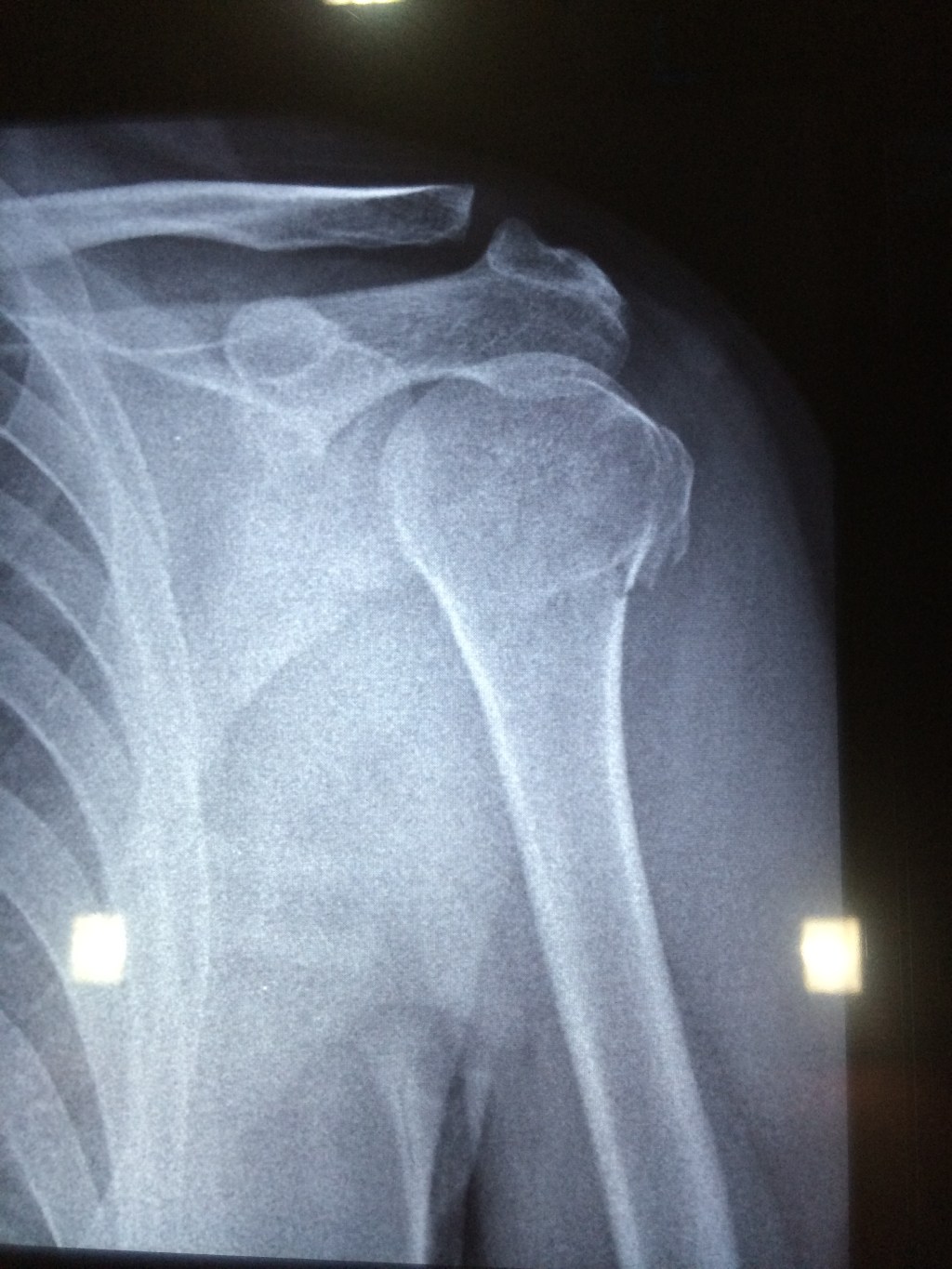
    Well, I broke my left arm last week and as expected got some X-rays done. Hospitals and clinics have their well lit setups for viewing the X-ray slides. Ideally you would want to take photos from these setups, but it may not always be possible to do so. In such cases there are a few options for you to snap the slide at home:

    1. Use a flashlight app on an iPad\tablet to get a full white screen set at full brightness and use this to light up the slide. I used this technique for my slide pictured above. You may not get full coverage, but it is good enough if you know which section of the slide you need to click.
    2. The next option is to use a laptop screen with a white wallpaper or a blank text editor to get a white background. You will need to hold the slide in place with this technique, but it should give you greater coverage.
    3. The last option would be to use the largest screen at home, i.e., the TV. It may not be easy to get a fully white screen on the TV unless you can connect your tablet\smartphone\laptop to it and mirror the white background, but this is probably the only screen large enough to cover the slide completely.

    So, there you go a few simple ways to light up that slide.

  • So you really want to buy a DSLR?

    Now that you have made up your mind on buying a DSLR and have hopefully allocated a budget, let me present you with what I think are your best options to spend your money based on my experiences over the last 3 years. I have kept the recommendations as platform agnostic as possible and tried to present options that will give you the most value in the long term. To start off, you’ll need to DSLR body and a lens to go with it. You can then add on other lenses and accessories over the course of your photography journey. You also need to choose the company whose platform you want to buy into as this will determine not just your initial options, but also your upgrade roadmap.

    It makes sense to split your budget into two in order to choose the lens and body. A 50:50 or 60:40 split (lens:body) should give a good balance. The table below is based on Indian market prices, so if you decide to get the equipment from abroad, you should be able to get them 15-20% cheaper at the very least.

    Body

    Choosing the right DSLR body is an important first step, and the cost can range from around Rs 20,000 to a few lakhs. We are already in a situation where even the starter bodies give excellent results. However, investing in a higher end model gives you more room for growth as you get accustomed to the DSLR system. Typically, the starter models have the least capable sensor (about sensor formats), while the mid-range to pro\semi-pro models have similar ones. While megapixels should not be a driving force in Point & Shoot or Smartphone camera buying decisions, they still have some value in the DSLR arena. The images you obtain using a DSLR are of a much higher quality and more megapixels give you more cropping room.

    Higher end bodies also have better construction quality with the pro models being weather sealed when paired with a suitable lens. Of course, this also means that higher end models are heavier. Apart from this, higher end models have a lot more controls in the form of buttons and dials. This makes it easier to access a lot of the advanced functions that a DSLR offers, but you will appreciate this only later on. In fact, buying a higher end body can seem intimidating if you are not used to tinkering with camera controls. The camera manual is something you should be prepared to read if you want to make the most of your new purchase.

    Auto focus performance is an area where a higher end body will have a big leg up on the lower end models. This can make a tangible difference in the images you capture, particularly for moving subjects. Of course, the lens also plays a major role in this area.

    A few other features to consider are touch screen capabilities, tilt & swivel screens and wireless flash control capability. While the first two features can make your life easier while using the camera and composing images, the third option is something that you will need a capable external flash to appreciate. An external flash is one of my recommended accessories, and this feature will help you use it even better (explore the Strobist blog on this topic, though you will appreciate it a lot more down the line). This feature is available on most of the mid-range bodies and higher up. Some OEMs (Sony, Olympus, Pentax) also offer image stabilization built into the camera body and this can make for cheaper lenses while making the feature available at all times.

    My recommendation is to invest in a mid-range body (unless you can get a relatively recent pro\semi-pro model second hand) as they offer a good set of controls. Also, it is better to buy the model from a year or two earlier as the price will be a lot more reasonable, while offering similar image quality and features to the current year’s model. Starter models, while cheap will begin to feel limited in a couple of years once you get used to the system.

    Lens options

    First thing you need to do is to make yourself familiar with the terms like aperture and focal length as these are the basic parameters based on which you will be choosing lenses. Secondly, you need to understand that lenses do not come down in price unlike the DSLR bodies. So, it is better to either buy the lens that you want right now or save up for it rather than buying a lower quality lens and upgrading later. Thirdly, lenses are made not just by the companies that manufacture DSLR bodies, but also by other companies like Tamron, Sigma and Tokina for these DSLR platforms. Their lenses are usually cheaper than the OEM versions and can be a good deal on a limited budget.

    The lens choice might seem pretty simple to begin with as most DSLR bodies come bundled with a lens or two (usually called kit lens). However, lenses can make the biggest difference in the type and quality of images you can take and it is typically better to skip the kit lens keeping the photography journey in mind. You could go for the kit lens in a few scenarios:

    • Constrained budget (option 1 of the table) – the kit lenses still give you really good images, way better than any Point & Shoot can offer. Plus you get 2 lenses covering a long focal length range (the lenses by themselves would cost over Rs 20,000).
    • 6 figure budget in which case the bundled lenses are actually premium ones
    • You will be shooting a lot of videos in which case going for the silent and smooth focusing kit lenses (Canon uses the STM moniker) makes sense

    Other parameters to consider when choosing a lens (apart from focal length and aperture) are availability of image stabilization and the kind of focus motor being used. The former can help when shooting handheld while the latter can make for faster and silent focusing. If you plan to use circular polarizing filters with the lens, it also helps if the front element of the lens does not rotate when focussing or zooming.

    My recommendation for a starting lens is to go for a general purpose zoom as this will let you shoot images in different scenarios. A lot of people suggest to start with a prime lens (fixed focal length, i.e., no zoom). While it does help you become a better photographer, a prime lens will make it difficult a lot of images as there will be situations where you won’t be able to move close enough or far enough to compose your shot. However, a prime lens makes for an excellent second lens and my recommendation is to get one of the 50mm versions eventually, unless you have gone for a wide aperture (f/2.8) zoom lens.

    Even in general purpose zooms, you have quite a few options – starting from third party zooms like 17-50mm f/2.8 costing around Rs 20-25K to premium first party models like the 24-70mm f/2.8 costing around a lakh. Here’s a brief explanation of my recommendations from the initial table:

    • Kit lenses (normal zoom + telephoto zoom) – typically the 18-55mm f/3.5-5.6 & 55-200mm or 55-250mm f/4-5.6. These offer good value for money, but not the best possible image quality or convenience (particularly CPL filters).
    • Wide aperture zoom – typically the 17-50mm or 17-55mm f/2.8 lenses available from both OEMs and third parties. Both image stabilized and non-stabilized versions are available. While they may seem to be similar to the kit lens in terms of focal length, the image quality is considerably better due to the better quality elements used (check out the comparison image in the middle of this review). The other tangible benefit is the constant wide aperture of f/2.8 that results in a 2 stop advantage at the long end. Not only does it help in low light shooting (lower ISO or faster shutter), but it can also help you blur the background when taking portraits. You will also appreciate the constant aperture across the focal length range when shooting in manual mode as you don’t need to adjust the settings when shooting wide open.
    • Ultrazoom – typically the 18-200mm to 18-300mm variable aperture, again available from both OEMs and third parties. These may not offer very good image quality (on par with the kit lens), but make up for it with their focal length range. You are basically paying for the convenience of not having to carry around and change between two lenses. If you are not sure of what situations you will be using your camera or plan to travel quite a bit, this makes for a good choice.
    • High quality zooms – these are usually premium lenses made of high quality components giving you shaper and more colourful images. Most of these lenses have constant apertures and offer fast and silent focusing. Which lens you choose will be governed by your budget and focal length requirements.

    Accessories

    This is an area where you may not choose to invest immediately, but over time you can add on some basic equipment like a flash and filters for some interesting effects. At times in low light, you will find that even a DSLR does not give you the kind of images you had hoped for and the on camera flash makes things even worse. That will be the time to create your own get an external flash with a tilt and swivel head. Tripods are another frequently recommended equipment, but thus far I have not felt much need for it as I prefer handheld photography and image stabilization takes care of my needs. If you do want to go for a tripod, don’t bother with the cheaper models as they will not be very stable and I doubt you want your investment on the camera to come crashing to the ground. Instead, do some shooting and figure out whether you actually need one, and then be prepared to invest Rs 10-15K on a decent model.

    You will also need to good camera bag to carry around your equipment and you are likely to get a decent one bundled with your initial purchase. That should take care of your needs till you decide to buy more lenses and\or a flash.

    Which system to choose

    My recommendation would be to choose either Canon or Nikon (especially if you are in India) due to their market presence and lens range, while Sony is a distant third option. Olympus also has its DSLRs, but they use a smaller sensor and their network and lens range is limited. Pentax is pretty popular in the USA, but their presence is practically non-existent in India. There are also the mirror-less models from Sony, Canon, Nikon and Panasonic but the lens options are again quite limited and they don’t really give you much advantage over a full-fledged DSLR in terms of size or weight.

    Another aspect to factor in is which system your friends and relatives are using and choosing accordingly. This will enable you to borrow and exchange equipment, particularly lenses and open up more avenues for experimentation.

    Personally, I am a Canon user (EOS 550D), and my decision was based on having used the Canon system of Point & Shoot cameras starting with the PowerShot A300 and moving up to the A630. Plus, the 550D was the best mid-range model in 2010 (Nikon had the D5000 then).

    What you get for your money

    Today, when you buy a DSLR, you are entering not just the world of still photography, but also that of videography. It will also be your first step towards building your photography platform of choice. If you are coming from a Point & Shoot or camera-phone background, then you will really appreciate the better quality images to begin with. Over the course of your journey, you will also experience the images that were not technically possible on your previous cameras due to their limited low light capabilities and slow focus. Just remember to carry your new DSLR on your expeditions.

    The road ahead

    I hope that I have given some basic guidelines that will make it easier to choose which DSLR to buy. You can always read up more on the web and check out the current market prices of the bodies and lenses. So, do some more research, make up your mind on what to get, and go get that DSLR.

    It will be pretty tempting to spend more money on equipment once you have got the camera. However, the main area where you should be investing after getting your camera is in improving your skill (shoot as much as you can) and buying a few photography books should be a worthwhile investment.

    If you want some ideas from me on what you should do with that DSLR of yours, stay tuned for my next post in this series.

  • Magic Camera Settings by Thom Hogan

    Can’t get more concise than that I suppose:

    The best, most concise instruction manual in the modern world comes on the back of shampoo bottles: lather, rinse, repeat. So here’s the camera manual equivalent: learn, experiment, control, repeat. Pick one feature or option to learn about, experiment with it to see what the range of things it does might be, figure out how you want to control it, then repeat the process.

    via Magic Camera Settings by Thom Hogan.